Photoshop Tutorial: BulletTime ripple effect [Lots of images!]

15 posts · 2006-12-29 01:40:36 to 2006-12-29 16:38:08

#36300129485 12/29/2006 01:40:36 Photoshop Tutorial: BulletTime ripple effect [Lots of images!]

Photoshop Tutorial: phi's BulletTime(tm) ripple effect

The version of photoshop used for this tutorial is CS (Windows XP). These features work pretty much the same in 5.5, CS2 and CS3.
Mac users will have to tranlate the commands to mac-ish ... Not hard but I don't have a Mac so I don't know the option-apple-clover malarky. SMILEY

This tutorial will attempt to teach you how to turn this:
Archived image unavailable: album_thumbnail9b3d.html
01.jpg

into this:
Archived image unavailable: album_thumbnailcaa0.html
25.jpg


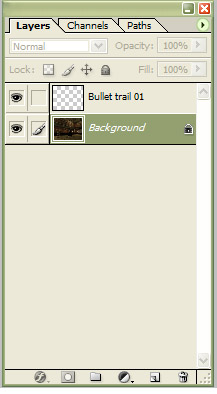
First, open your image that you wish to add the effect to and make a new layer called Bullet Trail 01 (if you are making bullet trails it gets messy and naming is important)
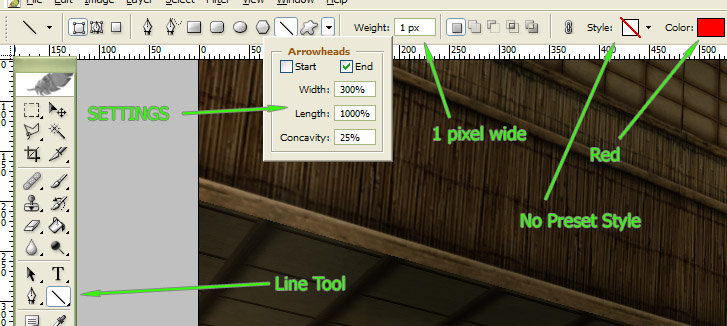
Select the Line tool and chose a colour that will stand out (for this image I have chosen red, I recommend a different colour for each trail in your image)
Then set the Line tool to 1 pixel wide, with an arrow head at the end. It is important to check that the Line tool isn't using a preset style as this will override your settings.
Select the Bullet Trail 01 layer we made earlier and draw the path of the bullet with the line tool as shown (I've started my bullet trail where the muzzle flash is and angled it based on the way the gun has kicked back)
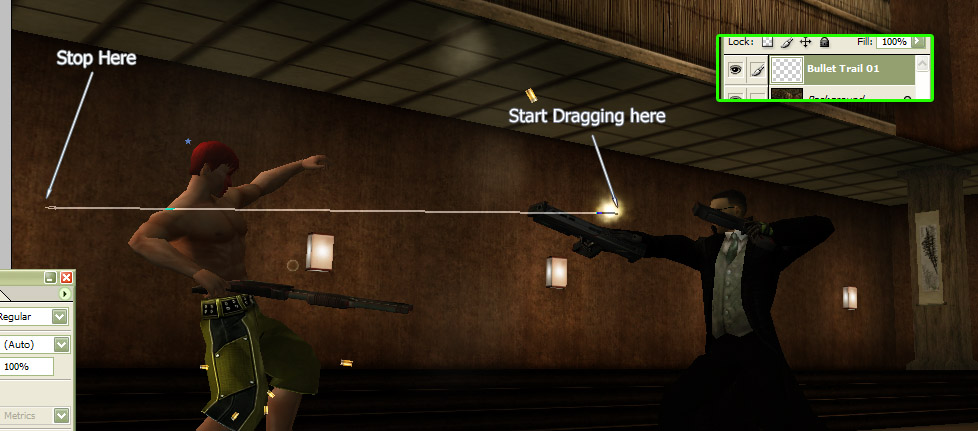
You should end up with something like this:

Make a new layer BEHIND the Bullet Trail 01 layer and call it Shockwaves 01
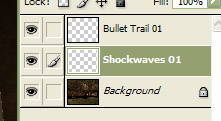

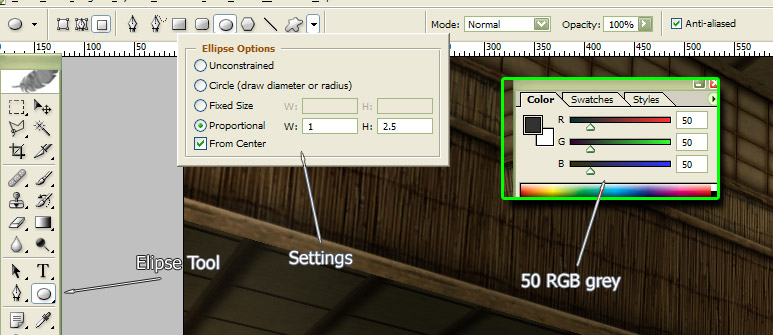
Set your foreground colour to RGB:50,50,50 (grey). Select the Elipse tool and set it to From Center (holding the alt key when drawing also does this if your version doesn't have this feature). Setting the Elipse Tool to proportional makes things faster and your work more consistent. Ther ratio to use depends on the angle the bullet path makes to the viewer. If the bullet is travelling directly towards you or away from you the circles would look almost round so the ratio should be close to W:1 H:1. If the bullet travelled across the screen in front of you the circles would appear quite squished and the height should be more than the width. In this case I have set the height to 2.5 times the width. Use your judgement and with practice you will be able to get this right easily.
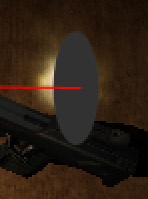
At the start of the bullet path but on the Shockwave 01 layer draw your 50-gray elipse with the centre on the bullet trail.
Next edit the layer properties and turn on Inner Glow, set it to white with the settings shown (make sure you chose the hump contour, as shown, to make a ring):
Archived image unavailable: album_thumbnail00e3.html
10.jpg

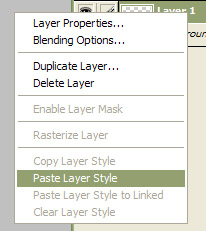
Right-click the Shockwave 01 layer and copy the layer style for later use.
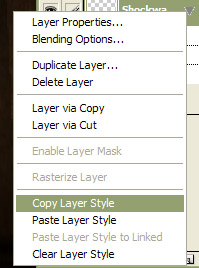
Make a new layer IN FRONT of the Shockwave 01 layer but BEHIND the Bullet Trail 01 layer and paste the layer style you just copied on it.

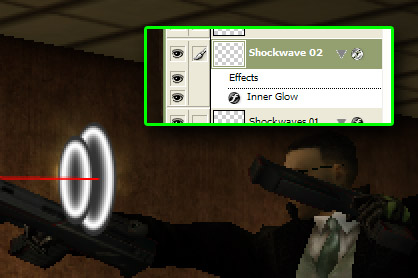
Now draw a new elipse a bit further along the bullet trail on the new layer and you should have something like this:
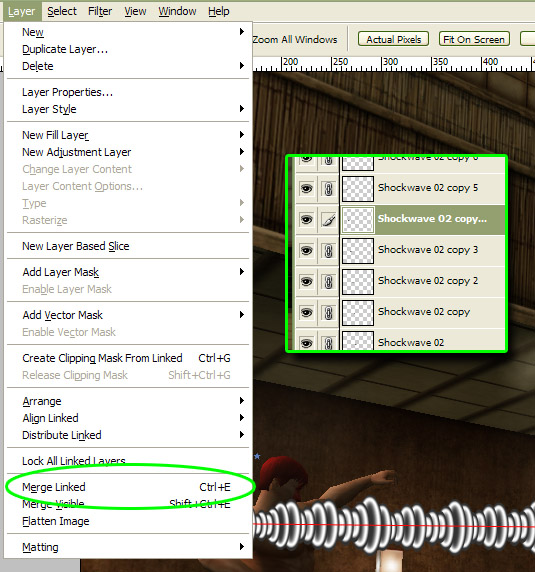
Repeat the above process, varying the elipse sizes as you go (I've made them a little big for this tutorial so you can see the details. Look at the movies and the bullet trails are thinner). Every now and then when you are getting too many layers, select the Shockwave 01 layer (the selected layer gives it's name to the new merged layer) and then link the other elipse layers to it. Then merge the linked layers. This prevents the layer style going ugly.
As you get nearer the bullet make the elipses smaller as these shockwaves were made more recently and haven't had time to spread much yet.
You should end up with something that looks like this:
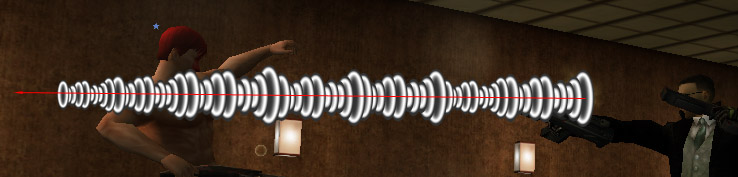
Now, right-click the merged final Shockwave 01 layer and duplicate it to a new image and call the new image BT Ripple 01.
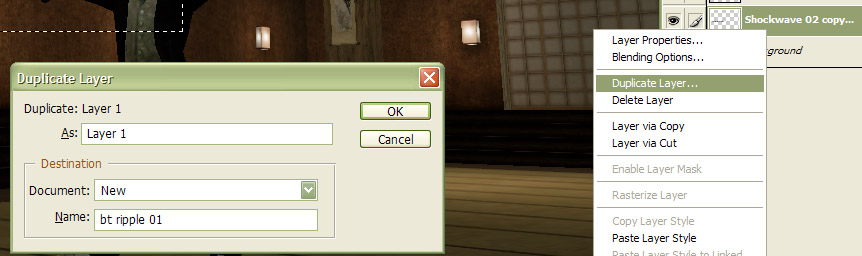
In the new image add a layer of black BEHIND the shockwave layer. DO NOT resize this image, it MUST be the same size as the image you are working on.
Archived image unavailable: album_thumbnailc995.html
016.jpg
Flatten this image and save it as BT Ripple 01.psd then close it.

Back in your original image, duplicate the background as a new layer (or whatever layer your original image is on) so we don't damage the working image.
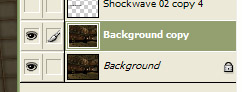
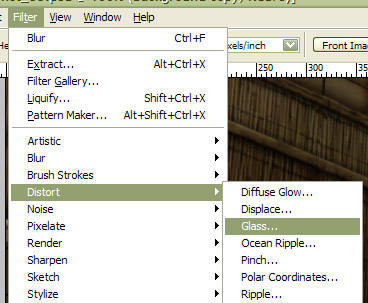
Select the new layer and open the Distort > Glass filter
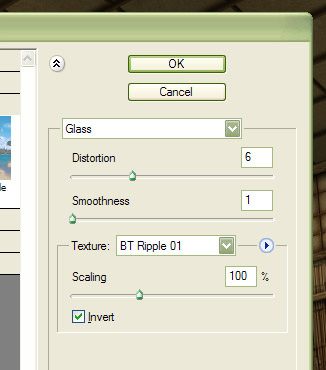
Load the image BT Ripple 01.psd as the texture and set the filter setting as shown: (scale MUST be 100% or the ripple will be in the wrong spot and the wrong size)
It will produce a result like this:
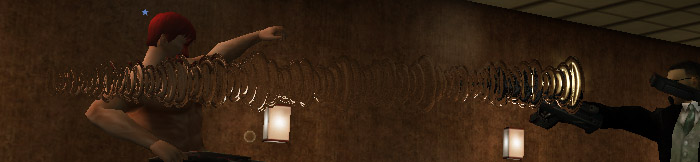
Almost there... but we can't quite see the ripples.
Select the Shockwave 01 layer and load it's inverted selection (ctrl-click the layer then press ctrl-shift-I or use the menus as shown)
Archived image unavailable: album_thumbnail42bb.html
21.jpg

Now select the layer with the glass distortion and press the Delete (Del) key on your keyboard. That will remove everything in the selected area (everything except the ripples)
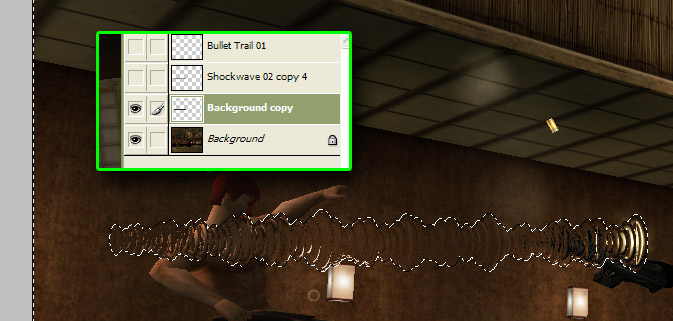
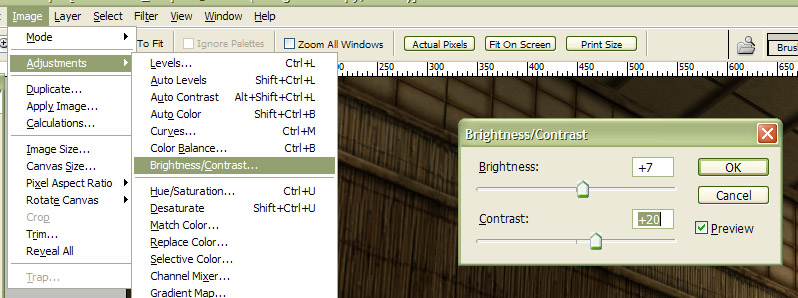
Adjust the layer's brightness and contrast slightly to make it a little more visible.
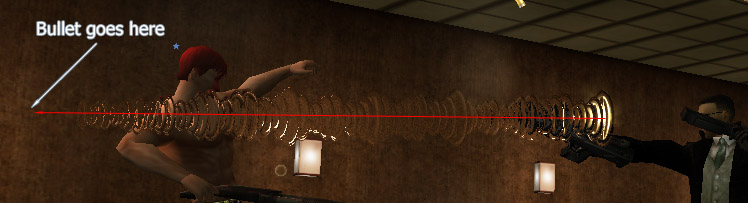
Don't forget to draw your bullet where the arrowhead on the bullet trail line is
All done! (Except I didn't bother with a bullet this time)
Archived image unavailable: album_thumbnailcaa0.html
25.jpg

Here's one I made earlier:
phiAU - The Kings of Never - noblesse oblige
#36300129499 12/29/2006 02:19:05 Re:Photoshop Tutorial: BulletTime ripple effect [Lots of images!]

WELL DONE PHI... WELL DONE...

interesting enough, I was just thinking of doing this same effect for the Bullettime for a few days now but just didn't get to do it since i went on Vacation and was out of town...


#36300129501 12/29/2006 02:21:43 Re:Photoshop Tutorial: BulletTime ripple effect [Lots of images!]
Great work on this Guide Phi! SMILEY
#36300129517 12/29/2006 02:51:23 Re:Photoshop Tutorial: BulletTime ripple effect [Lots of images!]
With only a few minor variations, this effect can be used to produce Glass or chrome effects as well.

I used to do this a much harder way... but now I've figured out how to make photoshop do the work for me... I also use a few other shortcuts.

One good one is to make a bit of pattern (7 elipses or so), merge them then duplicate the layer. To prevent it looking repetitive use EDIT > Transform > Scale to resize each copy.
Make sure you hold shift while scaling the layer to keep the width to height ratio. If you don't then things look bad ... fast.
phiAU - The Kings of Never - noblesse oblige
#36300129569 12/29/2006 06:14:17 Re:Photoshop Tutorial: BulletTime ripple effect [Lots of images!]
That's pretty awesome, Phi. Kudos to you. I'll be givin' that a go soon. SMILEY
#36300129590 12/29/2006 06:49:31 Re:Photoshop Tutorial: BulletTime ripple effect [Lots of images!]
Excellence! and thank you for adding it to my tutorial thread, Phi. SMILEY I will definately play around with this one. I think I have an idea or two to go with this as well.
#36300129657 12/29/2006 07:58:54 Re:Photoshop Tutorial: BulletTime ripple effect [Lots of images!]
Whew! Well done, phi. I'll definitely be trying this out when I've got a good amount of time lying around, heh.
#36300129767 12/29/2006 08:52:02 Re:Photoshop Tutorial: BulletTime ripple effect [Lots of images!]
I did it, it rawked, but I found that the bullet trails look a little too 3D. Aside from making thinner shapes to begin with, would you recommend any way to make the bullet shockwaves look a little flatter?
#36300129778 12/29/2006 08:58:21 Re:Photoshop Tutorial: BulletTime ripple effect [Lots of images!]
phi wrote:
With only a few minor variations, this effect can be used to produce Glass or chrome effects as well.

I used to do this a much harder way... but now I've figured out how to make photoshop do the work for me... I also use a few other shortcuts.

In a word, my friend... YES! HELL YES!!! I like you have been doing this a much more difficult and less efficient way, but I think you've hit the nail on the head.

This is the fruit of my play with this:


There are only two small concerns I have though. One would be the degree of aliasing that comes with the glass effect, but I think that can be worked out in the filter settings or cut slightly with a gausian blur of about .2 pixels. The other would be perspective. Bullet trails going in different directions like in the shot I did will have a different ratio as they move in different directions. Where you used the arrows as a guide, you could also use a few more arrows for perspective, as one would do in drawing. Like so:


All in all though, I love you. <3 I'm going to have so much fun with this...
#36300129931 12/29/2006 11:21:59 Re:Photoshop Tutorial: BulletTime ripple effect [Lots of images!]

This is a great guide phi,
Lots of good work and effort.

/Kudos


Thanks for the Memories MXO!
#36300129938 12/29/2006 11:30:43 Re:Photoshop Tutorial: BulletTime ripple effect [Lots of images!]
I definitely need to work on it, but here's the fruits of my labour so far. I wonder if other shapes than a elipsis, such as a full circle, could create an equally effective effect, for different angles?


Edit: The blood was just for sh*ts and giggles.
#36300129965 12/29/2006 12:16:02 Re:Photoshop Tutorial: BulletTime ripple effect [Lots of images!]
PBlade wrote:
I definitely need to work on it, but here's the fruits of my labour so far. I wonder if other shapes than a elipsis, such as a full circle, could create an equally effective effect, for different angles?

Yes, I think full circles be excellent for shots with the trail flying straight at the camera, or close to it.
#36300130080 12/29/2006 14:49:23 Re:Photoshop Tutorial: BulletTime ripple effect [Lots of images!]
Phi. You are officially a genius.

HELL YES!


#36300130108 12/29/2006 16:01:39 Re:Photoshop Tutorial: BulletTime ripple effect [Lots of images!]
Hey, groovy tutorial Phi, though it think it gets a little too sharp towards the small (closer to the bullet) end.  Perhaps a very light eraser (20 and 20?) and a smidge of blur would calm it down.
#36300130116 12/29/2006 16:38:08 Re:Photoshop Tutorial: BulletTime ripple effect [Lots of images!]

Answers to your questions:

Q1. It's a little too 3D... how do I tone that down?
Reduce the amount of distortion in the glass filter. (The Distortion slider)

Q2. The Glass distortion gets a bit aliased (that "grainy" look). What are my options?
It's never really a problem if you do what ALL good photoshop users do for artworks. Always make your image twice the size of the final product. Then as the final step resize your image dimentions to 50% and that will use bicubic sampling to reduce (and to some extent anti-alias) the image.
eg: Final image size : 1024 x 768 ... Working image size : 2048 x 1536

Another option is instead of adjusting the brightness and contrast of the ripple layer, duplicate it. Then apply a medium gaussian blur to the frontmost ripple layer and set the layer's blending mode to "screen" and turn the layer's transparency down to somewhere in the 40-60% range.

In short most of the aliasing issues can be solved fairly easily in image post-processing. Try to avoid making the glass filter smoother (the Smoothness slider) as this makes the ripples lose their shape. Although smooth ripples are very good for water ripples.

Q3. Things don't look quite right, what am I doing wrong?
In the tutorial I didn't cover how to do perspective properly... I recommend the method Pyraci suggested (because I actually do this) as shown in this image:

Q4. Any final suggestions?
A couple. SMILEY

Remember when making the ripples which direction the bullet is travelling relative to the camera. Always draw the ripples from furthest to closest otherwise the ripples won't look correct.

If the bullet (or other projectile if you want to mess around with other effects) is close to 90 degrees to the camera (towards or away from the screen) then the ripples will be much rounder (perfect circles if it's coming right at you/away from you) than if the the bullet is travelling across the screen. (the ripples would be mere lines if the bullet is travelling straight across the screen).
A good way for the inexperienced to figure out how "squished" the ripples should be is to get a blob of putty, put it on the end of a pencil and stick the pencil to the middle of the plate so that they make a T-shape (so it looks like a poor-man's satelite dish). Now point the plate so that the pencil shows the direction the bullet travelled. The plate is round but when it's at an angle, you can now see how squished the circles should be.

Don't be afraid to experiment, just make sure you have backups of your original images in case you mess up... AND HAVE FUN! SMILEY

phiAU - The Kings of Never - noblesse oblige